
Materials Needed:
- IC Realtime Body Thermal Camera (THIP-TDB2138 or THIP-TDB207)
- THBB-104F Temperature Reference Box
- IC Realtime Thermal NVR
- Wired Mouse and Monitor for NVR
- PoE Switch (optional)
- Mounting Plates (x2) & Tripod
- Laptop, ethernet cables
Hardware Setup:
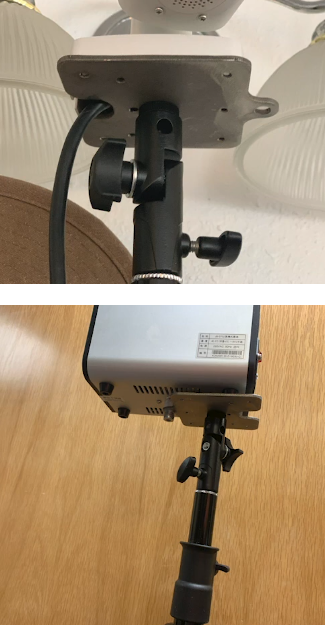
Step 1. Install Mounting Plates to Camera and THBB-104F. Confirm that the THBB-104F is powered properly.
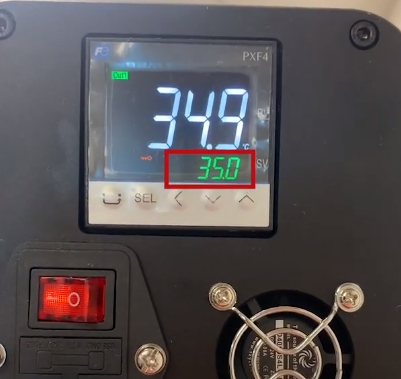
When powering the THBB-104F, allow the unit to warm up to 35 degrees Celsius before setting up the Thermal camera and NVR.
Step 2. Install Environment:
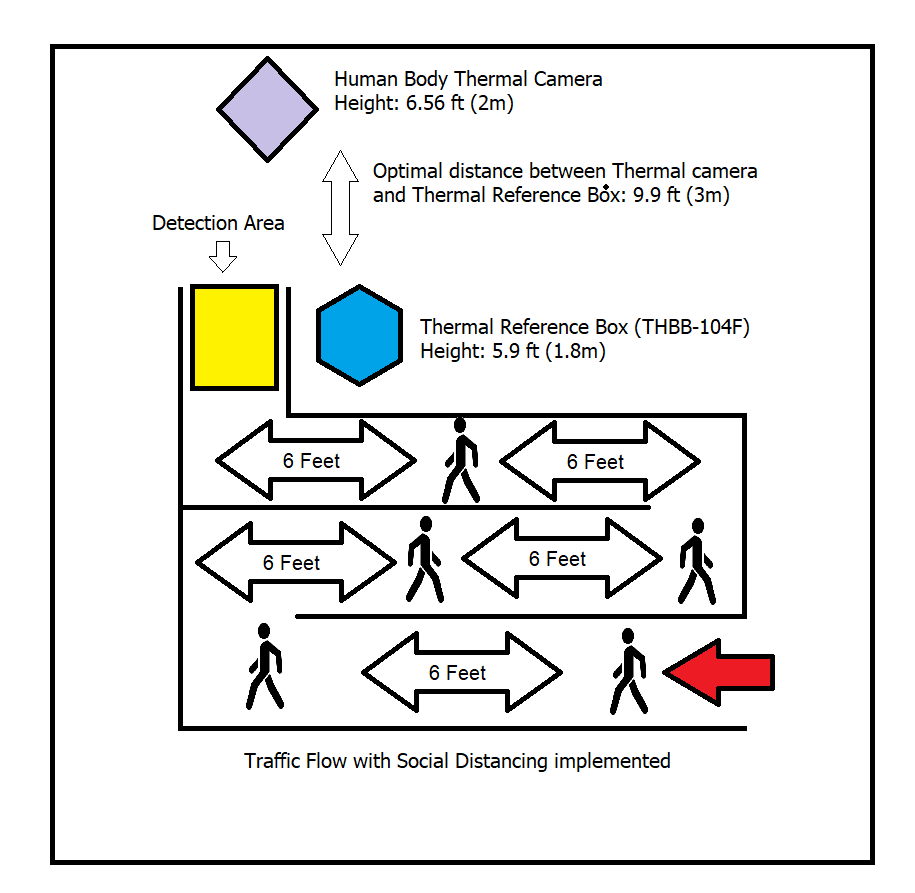
- The optimal height for the Thermal camera is about 2 meters (6.56 ft)
- The optimal height for the THBB-104F Temperature Reference Box is 1.8 meters (5.9 ft)
- The THBB-104F should be placed next to the Detection Area.
- Optimal Distance between Thermal Camera and Detection area/ Temperature Reference Box is 3 meters (9.9 ft)
The Traffic Flow should be Setup:
- Make sure there is sufficient Illumination
- The camera view should be indoors only. Avoid areas where the outdoors are in view of the Thermal Camera.
- Target person should be in the the detection area facing the thermal camera.
- With Social Distancing in mind (6 feet distance between people). See diagram below:
Thermal Camera Setup:
Step 1. With the laptop, log in to the Thermal Camera Web Interface using a web browser. If the camera is plugged into NVR built-in PoE, your PC will also need to be plugged into the NVR PoE to access the camera. If the camera is plugged into an external PoE switch, Make sure the PC is plugged into the same switch. The camera will be on DHCP by default. If there is no existing network that is assigning IPs, the camera will have the default IP of 192.168.1.108.
Step 2. Go to the Settings Tab.
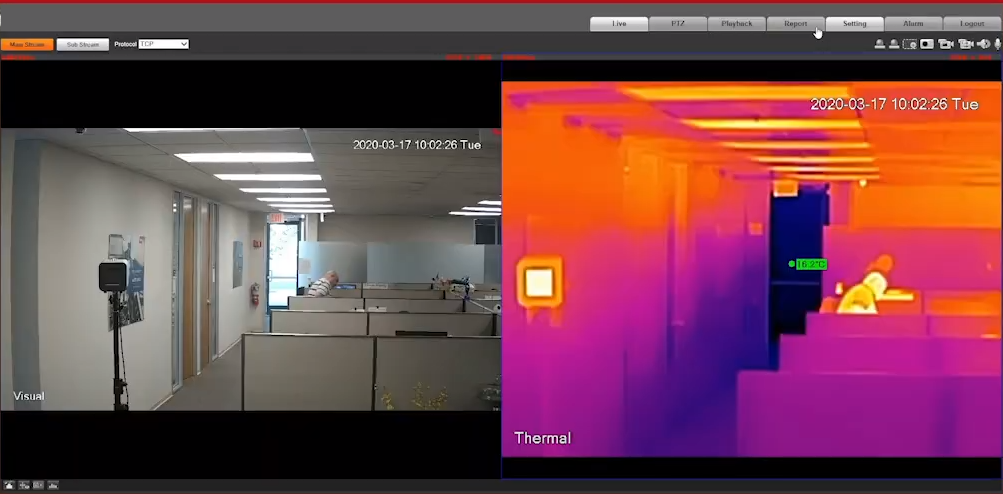
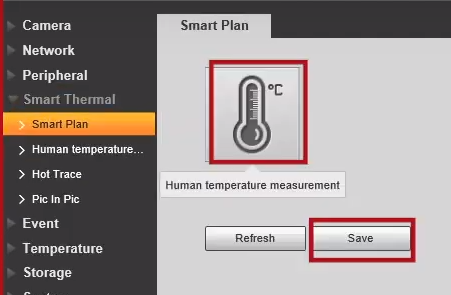
Under Smart Thermal, click on Smart Plan and Select the Temperature Icon. Click Save when finished.
Step 3. Under Smart Thermal, click on Human Temperature then click on the Blackbody Perimeter Tab. This will be used to identify the Temperature Reference Box. Click the check box for Enable then Click the Draw Area button.
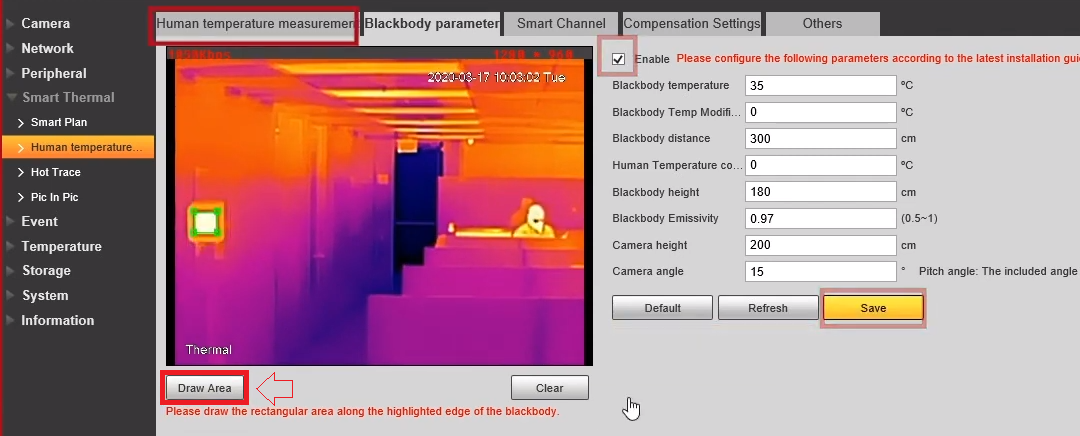
Select the Draw Area button and draw a box around the Temperature Reference Box. Click Save when finished.
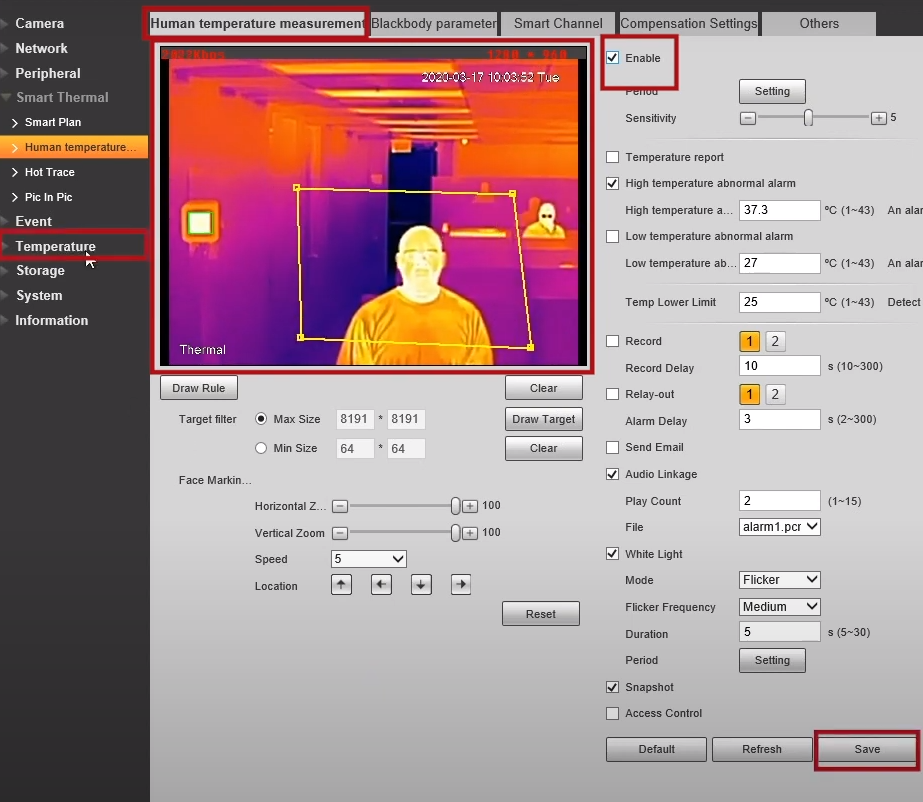
Step 4. Click on Human Temperature Measurement tab. Click on Enable check box. Click Draw Rule. Draw a box around the Detection Area. Click Save when finished.
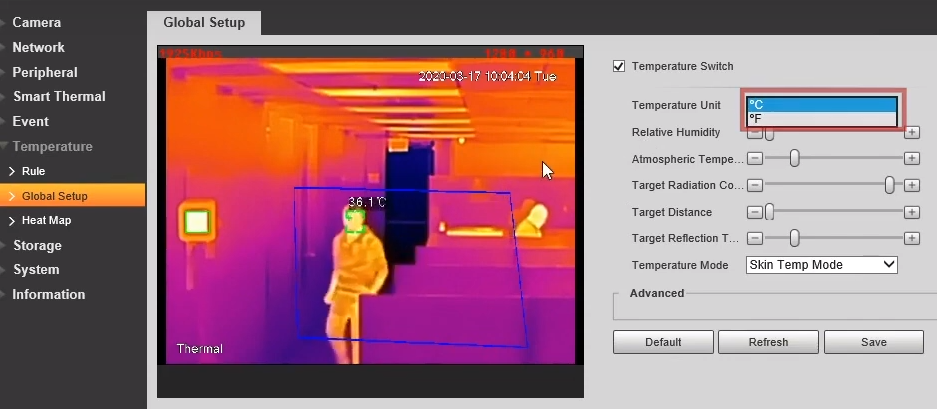
Step 5. On the left Menu, Click on Temperature then Global Setup. Select Temperature Unit and change to Fahrenheit from the drop down. Click Save when finished.
Thermal NVR Setup:
Step 1. Prior to this setup, make sure the Thermal Camera has been added to the NVR as a channel. Right click on the local display and select Preview Mode, Set from General Mode to AI Mode.
Step 2. Right click and select Main Menu. Click on AI.
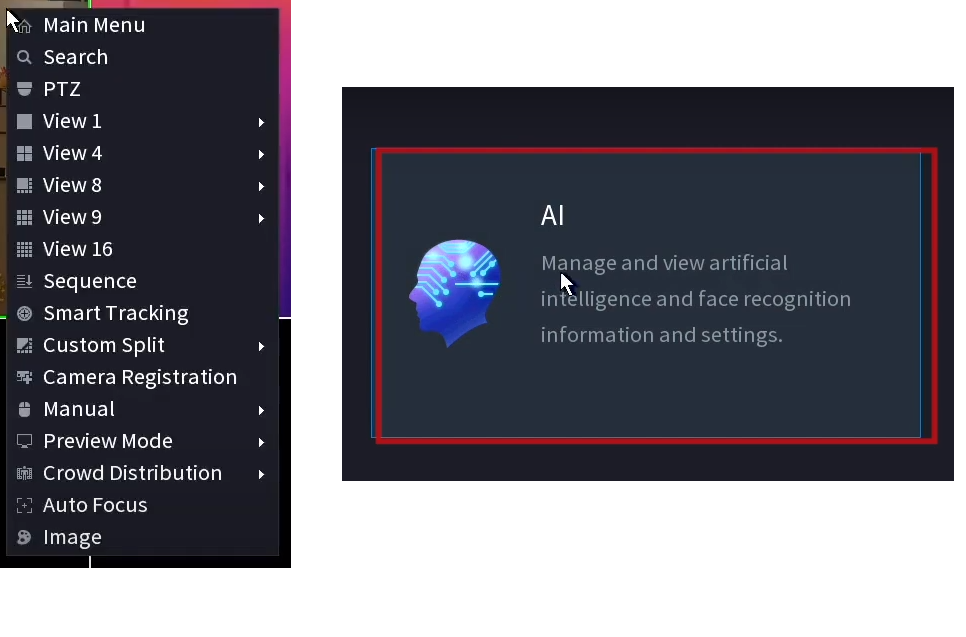
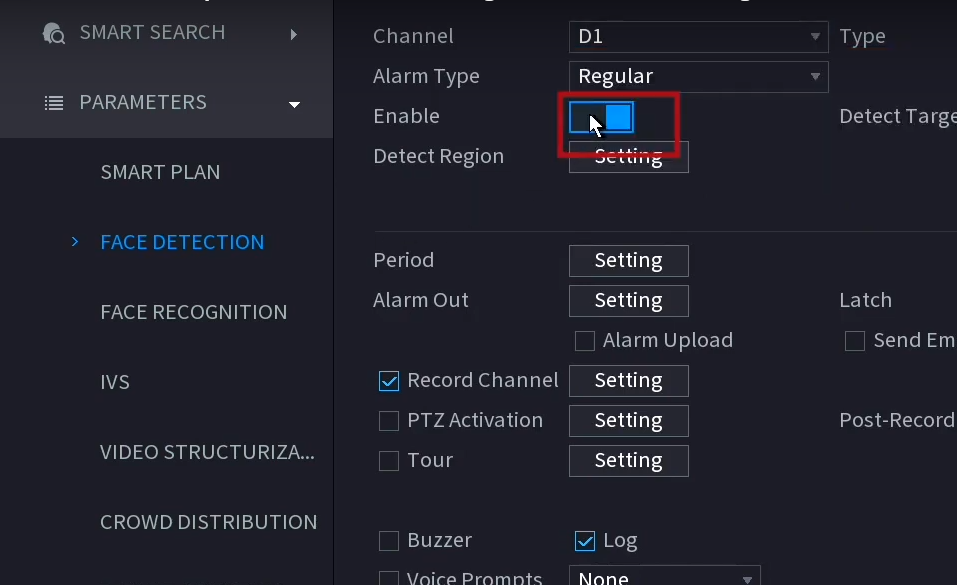
Step 2. On the side bar click on Face Detection. Select the appropriate channel for the Thermal Camera. Toggle Enable on. Click Apply When Finished. Right click to go back to the Main Menu.
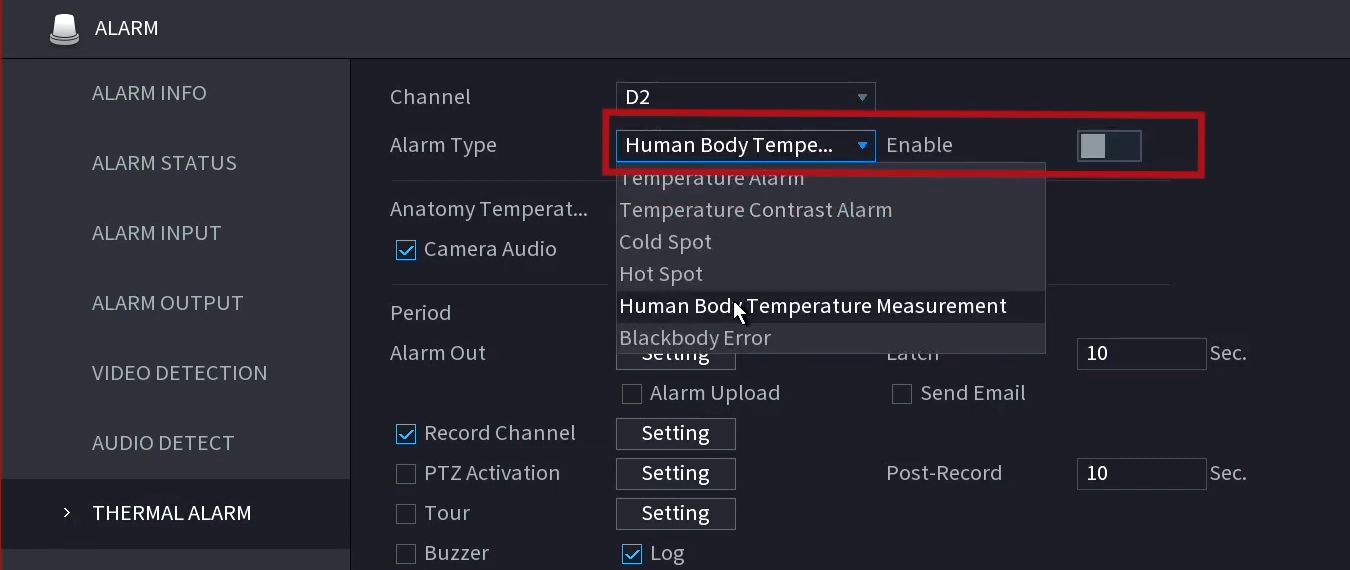
Step 3. From the Main Menu, click on Alarm. Under Alarm, select Thermal Alarm. Select the appropriate channel of the Thermal camera. Under Alarm Type, Select Human Body Temperature Measurement. Toggle Enable on. Click Apply When Finished.
Comments
0 comments
Please sign in to leave a comment.